How to Design SharePoint Navigation for Large, Complex Organisations
Key Takeaways
- Consolidation reduces cognitive load and creates coherence. When you move from multiple fragmented sites to one unified hub, employees suddenly know where to look. Clear, simplified architecture means people can get their work done faster.
- Hub-and-spoke navigation scales elegantly. Central control of the top navigation ensures consistency across departments, while departmental autonomy keeps content fresh and relevant. This balance of central governance with distributed ownership allows large organisations to maintain a single cohesive intranet rather than devolving into silos.
- Mega menus and logical grouping eliminate the need to click blindly. When departments are organised by meaningful categories and accessible via one or two clicks, employees find what they need without frustration.
- Testing with real employees reveals what org charts don’t. Involving staff in navigation design activities uncovers frustrations and ways of thinking that internal stakeholders would never have assumed. User-centred navigation transforms intranets from tools that people tolerate into tools that people actually enjoy using.
When you’re responsible for an intranet serving hundreds of departments or teams, navigation design becomes one of your highest priorities. Get it wrong, and employees waste hours searching for information. Get it right, and they find what they need in seconds. The challenge is balancing central coherence with local relevance. Ensuring the intranet serves employees from every department without creating a confusing maze of options.
Working across hundreds of intranets, we’ve learned that navigation architecture is more about understanding how people actually work, rather than technical configuration. In this article, we’ll walk through key strategies for scaling navigation across large organisations. Drawing on Silicon Reef’s experience with complex organisational structures like the University of Leeds, and global companies like Gulf Oil, we’ll share proven approaches to keep even the biggest intranets intuitive and user-friendly.
Consolidate & Simplify the Architecture
Large organisations often suffer from sprawl. The University of Leeds, for example, had over 650 disconnected sites and a fragmented SharePoint environment before their intranet overhaul. It’s no wonder only 24% of staff felt they could easily find needed content in that landscape. The first step is to reduce complexity: consolidate content into a more manageable number of sites. Instead of 650 sites for every little unit, create a clear hierarchy of primary intranet sections.
In practice, for Leeds we helped replace that sprawl with one central SharePoint intranet hub, with content organised under it in a logical way. The mantra is “flat is better than deep.” Fewer, broader sites connected by hub navigation usually yield a simpler, faster navigation experience than an endless maze of subsites.
Want Deeper SharePoint Intranet Design Tips?
Use a Hub-and-Spoke Model
When you have dozens or hundreds of departments, a hub-and-spoke architecture works well. The idea is to have a main intranet landing (the “hub”) that surfaces global content and nav. Then, branch out to department sites (“spokes”) for detailed content. In SharePoint Online, this translates to using Hub Sites: a central communication site as the main intranet, with each major department or region as an associated site connected to that hub.
This way, each department gets its own space with autonomy to manage their pages and libraries, but all share a common navigation and branding inherited from the hub. Employees can navigate from the hub to any department site easily via a mega menu or drop-down of departments. For example, at Westminster Abbey, we structured their intranet homepage as the hub (“AbbeyNet”), and created clearly marked sections for groups like HR and IT, all accessible from the main nav.
In a larger corporate scenario, you might have multiple hubs (one for Corporate HQ, one for each major business unit), but don’t go overboard. Each additional hub is like another “portal” employees must navigate. Often, we aim for one primary intranet hub that almost everyone lands on, and perhaps a few secondary hubs if divisions are very distinct.
Consistent global elements
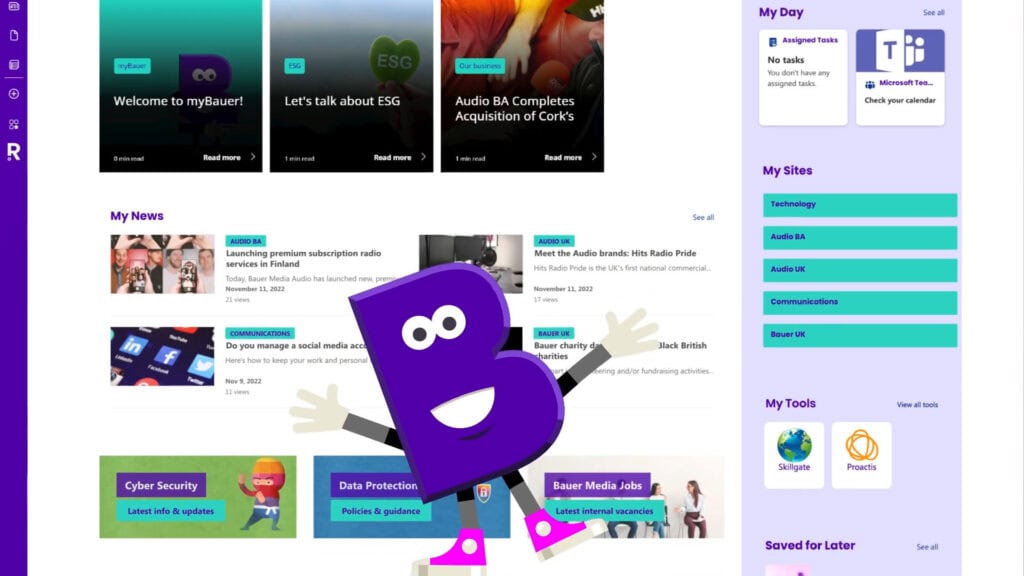
Ensure some navigation elements are consistent everywhere. Typically, the top navigation bar should remain the same across all pages of the intranet. This gives employees a constant anchor. They always know they can click “Home” or switch major sections no matter where they are.
We enforce this by using SharePoint hub sites and the new global navigation (via the SharePoint app bar or Viva Connections). So, even if someone wanders into a deep library, the global nav is present to guide them back.
Consistency reduces cognitive load. An employee from Department A who visits Department B’s pages shouldn’t feel lost. Familiar navigation cues should still be there.
Search as part of navigation
In a huge intranet, good navigation design goes hand-in-hand with search. Some people navigate via menus, others jump straight to the search bar. So place the search box prominently (usually at top of the page) and make sure it’s configured to index all those hundreds of departments’ content.
We often configure the search scope in a hub site to include all associated sites, so that a search from the main intranet hub returns results from any department site under that hub. At University of Leeds, consolidating everything into one hub meant that a single search query could fetch results from what used to be silos. We also recommended surfacing frequently searched content as direct links or using highlighted content web parts.
For example, if “HR Forms” is a top search query, put an “HR Forms” link in the global nav or homepage. In essence, study employees’ top tasks and make those tasks reachable either via one-click nav or via reliable search. Navigation is not only menus, it’s the sum of ways people locate information.
Test & Evolve with Employees
With so many departments, you won’t get the navigation perfect on day one. It’s crucial to test early prototypes of your nav with employees from various teams. In large intranet projects, we often present a draft information architecture to a sample of employees and gather feedback: “Do these categories make sense? Can you find X item?”
This happened with University of Leeds – after initial workshops, a proposed nav structure was validated and tweaked in focus groups. Similarly, at Bauer Media, an intranet prototype with key pages and nav was showcased internally for feedback, ensuring the design met diverse needs before full build. Incorporate feedback, and even after launch, keep channels open (a feedback form on the intranet) for suggestions like “I can’t find Y – where is it?”. If multiple people raise similar issues, you might need to adjust the nav labels or placement. The information architecture should be seen as a living thing that can evolve as the organisation changes.
By structuring your intranet with a clear hub-and-spoke model, logical groupings, consistent global navigation, and personalisation where appropriate, even a sprawling enterprise can feel navigable. The payoff is huge: employees will spend less time searching and more time doing productive work.
When designing for hundreds of departments, remember that simplicity and clarity are your friends – aim to present a big organisation in a way that feels straightforward to each individual employee.
How Silicon Reef Helps Design Intuitive SharePoint Navigation
Designing navigation for hundreds of departments is much easier when you have the right structure and design foundations in place. We combine SharePoint intranet strategy, information architecture and UX-led design to turn complex estates into intranets that feel simple and intuitive to employees.
In practice, that usually means:
- mapping how your organisation actually works, then shaping hub-and-spoke intranet structures and site architecture around real user journeys rather than org charts;
- designing clear, user-friendly navigation and mega menus so employees can move from the homepage to the right department, tool or resource in a couple of clicks;
- using methods like card sorting, tree testing and persona workshops to validate labels, groupings and page layouts with real employees before we build.
Our SharePoint intranet and design services cover everything from out-of-the-box intranet hubs to bespoke, branded experiences, so navigation, design and governance all work together as your intranet grows.